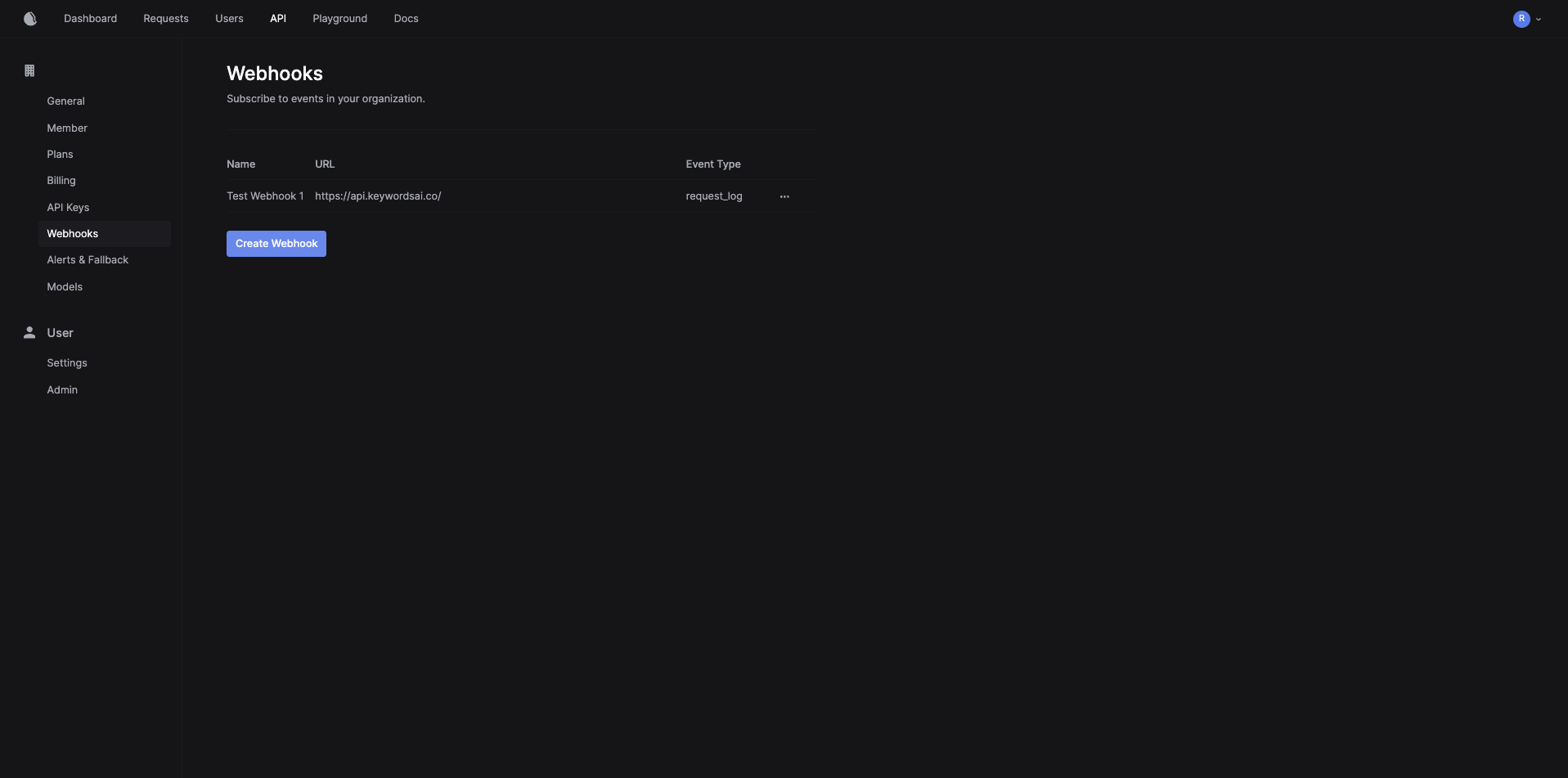
The Keywords AI platform provides a webhook system that allows you to receive notifications when certain events occur. For example, when Keywords AI logs a new request, your webhook and point can receive this notification as an API call from Keywords AI.

Authentication

Keywords AI uses digital signature strategy for webhook data verification. The data sent from Keywords AI undergoes the following process before you can use it:
  1. The data is ready in Keywords AI’s backend
{
    "some":"data"
}
  1. The Keywords AI encodes the data with your API Key string retrieved from the action’s header (we don’t store your API key) that triggers the webhook, using SHA-256 algorithm.
import hmac
import json
api_key = retrieve_from_header(some_action_header)
stringified_body = json.dumps(data_to_send)
signature = hmac.new(
    fake_api_key.encode(),
    stringified_body.encode(),
    "sha256"
).hexdigest()
  1. The signature is then passed to X-Keywordsai-Signature. This is case sensitive.
// Some header
{
    "X-Keywordsai-Signature": "2217632f28bdfc939977d00790f1c8cc9997c23ab36de810ae7e4fecdb310603"
}
  1. You can verify then data and accept or reject the payload
secret_key = YOUR_KEYWORDS_AI_API_KEY
signature = request.headers.get("x-keywordsai-signature")
compare_signature = hmac.new(secret_key.encode(), msg=stringify_data.encode(), digestmod="sha256").hexdigest()

if compare_signature != signature:
    return Response({"message": "Webhook signature does not match."}, status=401)

Using Webhook Secrets

Instead of using your API key for webhook signature verification, you can use a dedicated webhook secret. This provides better security by allowing you to use a separate secret specifically for webhook validation without exposing your API key. When creating or editing a webhook in the Keywords AI platform, you can copy the webhook secret and use it for signing the signature instead of using the API key.
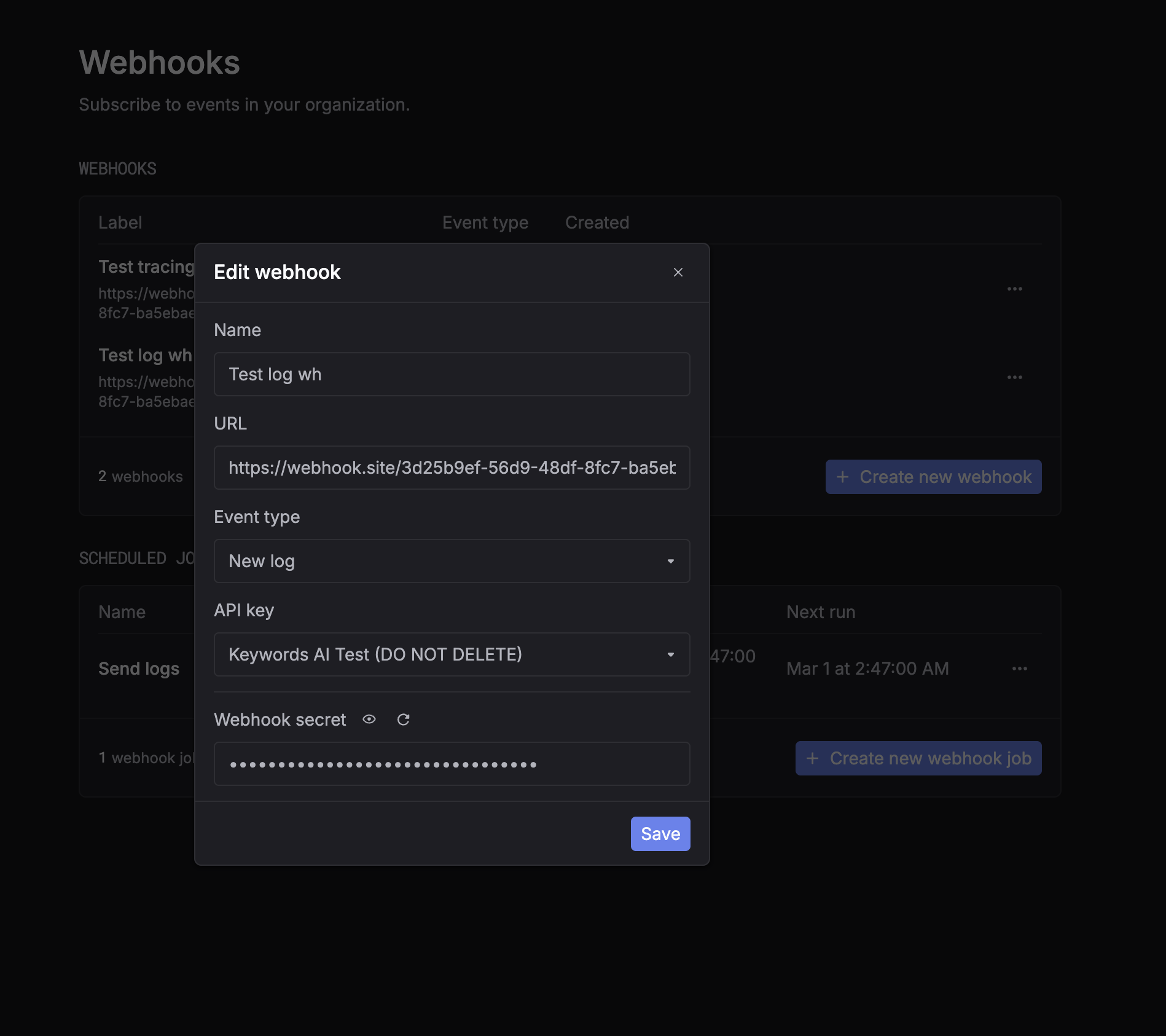
webhook_secret_v0
To use the webhook secret, simply replace YOUR_KEYWORDS_AI_API_KEY with your webhook secret in the verification code:
secret_key = YOUR_WEBHOOK_SECRET  # Use webhook secret instead of API key
signature = request.headers.get("x-keywordsai-signature")
compare_signature = hmac.new(secret_key.encode(), msg=stringify_data.encode(), digestmod="sha256").hexdigest()

if compare_signature != signature:
    return Response({"message": "Webhook signature does not match."}, status=401)

Example for using Webhooks

  1. Define a webhook endpoint in your application.
This endpoint sends an email to the admin when a webhook event is received.
Django
import hmac
## This endpoint corresponds to http://localhost:8000/api/webhook/
## Replace this endpoint with your actual endpoint
class TestWebhook(APIView):
    authentication_classes = []
    permission_classes = [AllowAny]
    
    def post(self, request, *args, **kwargs):
        data = request.data
        stringify_data = json.dumps(data)
        secret_key = os.getenv("KEYWORDS_AI_API_KEY")
        signature = request.headers.get("x-keywords-signature")
        compare_signature = hmac.new(secret_key.encode(), msg=stringify_data.encode(), digestmod="sha256").hexdigest()
        
        if compare_signature != signature:
            return Response({"message": "Webhook signature does not match."}, status=401)
        
        send_mail(
            subject=f'Test Webhook Received',
            message=f"Webhook data: {data}",
            from_email=settings.DEFAULT_FROM_EMAIL,
            recipient_list=[settings.DEFAULT_FROM_EMAIL],
        )
        return Response({"message": "Webhook received."}, status=200)
  1. Create a new webhook in the Keywords AI platform.
    1. Go to the Webhooks page in the Keywords AI platform.
    2. Click on the “Create Webhook” button, a modal will appear.
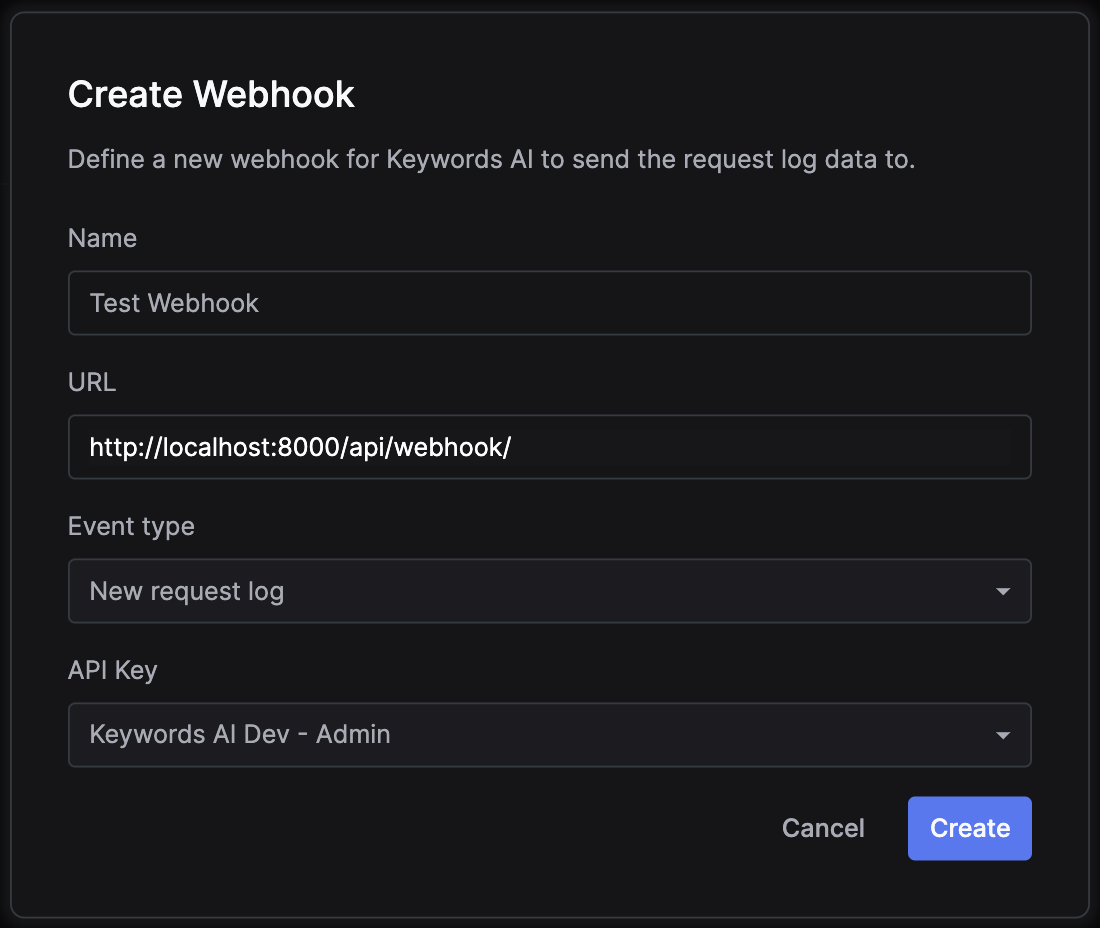
    1. Define the webhook URL. In this demo, it is http://localhost:8000/api/webhook/.
    2. Define the event type that triggers the webhook. In this demo, it is New request log (when an API call is logged).
    3. Define the API Key you want to associate this webhook with. In this demo, it is an admin development key.
    4. (Optional) Copy the webhook secret from the webhook settings if you want to use it instead of the API key for signature verification.
    5. Click on the “Create” button.
  2. Make an API call to the chat completion endpoint
  3. Receive the email.