We current don’t support LLM proxy users using Keywords AI credentials, so you have to add your own credentials for each model you want to use.
There are two ways to add credentials, from the UI or in code. We recommend adding credentials from the UI, since it’s easier to manage.
Typically, adding credentials is basically adding the API key for the model you want to use. Except for Azure OpenAI and Bedrock, where you have to add the API key, API base, and the endpoint.
Add credentials from the UI
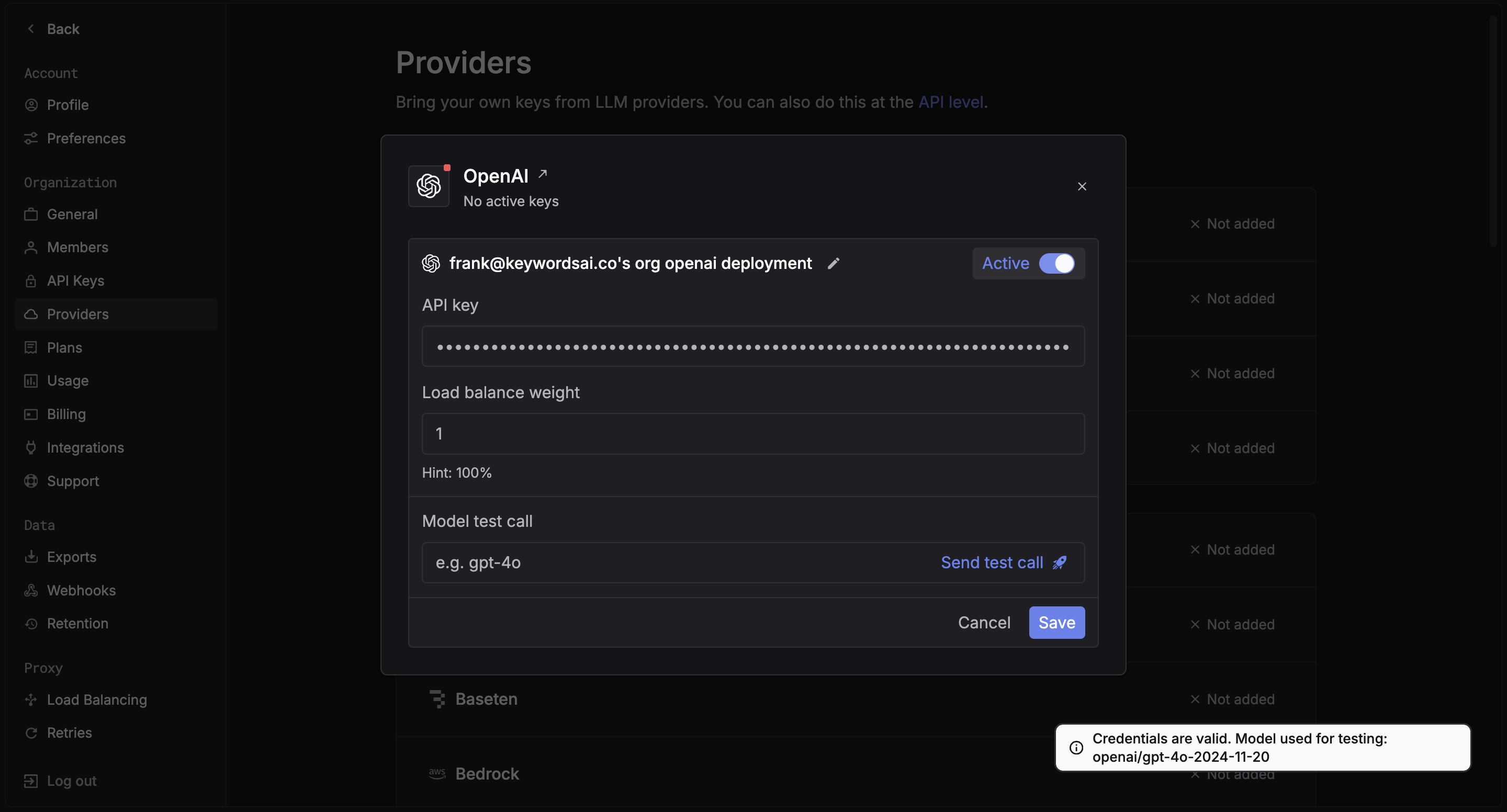
First, go to the Providers page. Choose the provider you want to use, and click the provider card.
For example, if you want to use OpenAI, you can add the API key for the model you want to use. Just click on the OpenAI card, and add the OpenAI API key.
You can also test the credentials by adding a model and clicking on the Test button. We will try to use the credentials to generate a response from the model.
Add credentials in code
You can also add credentials in code, but this is not recommended since it’s more difficult to manage. You can add credentials in code by passing the customer_credentials parameter to the LLM proxy.
OpenAI Python SDK
OpenAI TypeScript SDK
Standard API
Other SDKs
from openai import OpenAI

client = OpenAI(
    base_url="https://api.keywordsai.co/api/",
    api_key="YOUR_KEYWORDSAI_API_KEY",
)

response = client.chat.completions.create(
    model="gpt-4o-mini",
    messages=[
        {"role": "user", "content": "Tell me a long story"}
    ],
    extra_body={
        "customer_credentials": {
            "openai": {"api_key": "YOUR_OPENAI_API_KEY"}
        }
    }
)
In OpenAI TypeScript SDK, you should add a // @ts-expect-error before the customer_credentials field.import { OpenAI } from "openai";
const client = new OpenAI({
baseURL: "https://api.keywordsai.co/api",
apiKey: "YOUR_KEYWORDSAI_API_KEY",
});
const response = await client.chat.completions
.create({
messages: [{ role: "user", content: "Say this is a test" }],
model: "gpt-4o-mini",
// @ts-expect-error
customer_credentials: {
openai: {
api_key: "YOUR_OPENAI_API_KEY"
}
}
})
.asResponse();
console.log(await response.json());
import requests
def demo_call(input,
              model="gpt-4o-mini",
              token="YOUR_KEYWORDS_AI_API_KEY",
              ):
    headers = {
        'Content-Type': 'application/json',
        'Authorization': f'Bearer {token}',
    }

    data = {
        'model': model,
        'messages': [{'role': 'user', 'content': input}],
        'customer_credentials': {
            "openai": {
                "api_key": "YOUR_OPENAI_API_KEY"
            }
        }
    }

    response = requests.post('https://api.keywordsai.co/api/chat/completions', headers=headers, json=data)
    return response

messages = "Say 'Hello World'"
print(demo_call(messages).json())
We also support adding credentials in other SDKs or languages.
Add multiple credentials
We support you adding multiple credentials for the same provider. For example, you can add multiple OpenAI API keys, or multiple Anthropic API keys. Just add the credentials in the same way you would add a single credential, but you have to specify the weight of each credential - the weight is the probability of the model using the credential.
For more information, please check out our Load balancing page.
View which credential was used
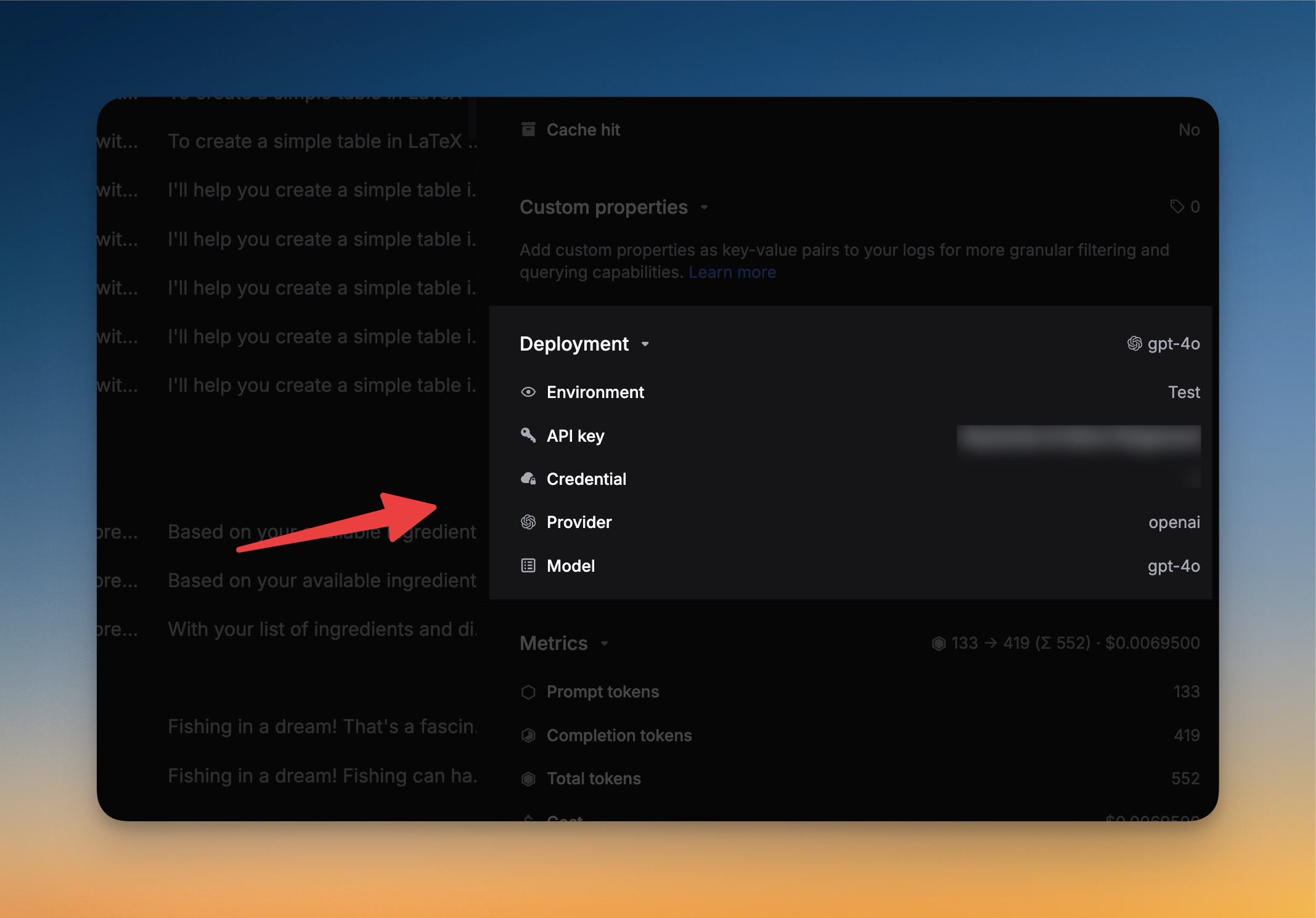
You can view which credential was used in the each LLM log. Open the side panel of the LLM log, and you will see the Deployment section.
We call each credential a Deployment.
Override credentials for a model
You can override credentials for a particular model by adding the credential_override parameter to the LLM proxy. This is useful if you want to use a different credential for a particular model. For example, you can override the credential for the gpt-4o model by adding the following to the LLM proxy:
{
  // Rest of the request body
  "customer_credentials": {
    "openai": {
      "api_key": "YOUR_OPENAI_API_KEY",
    }
  },
  "credential_override": {
    "gpt-4o":{ // override for a specific model.
      "api_key": "YOUR_ANOTHER_OPENAI_API_KEY",
    }
  }
}