

What are views?
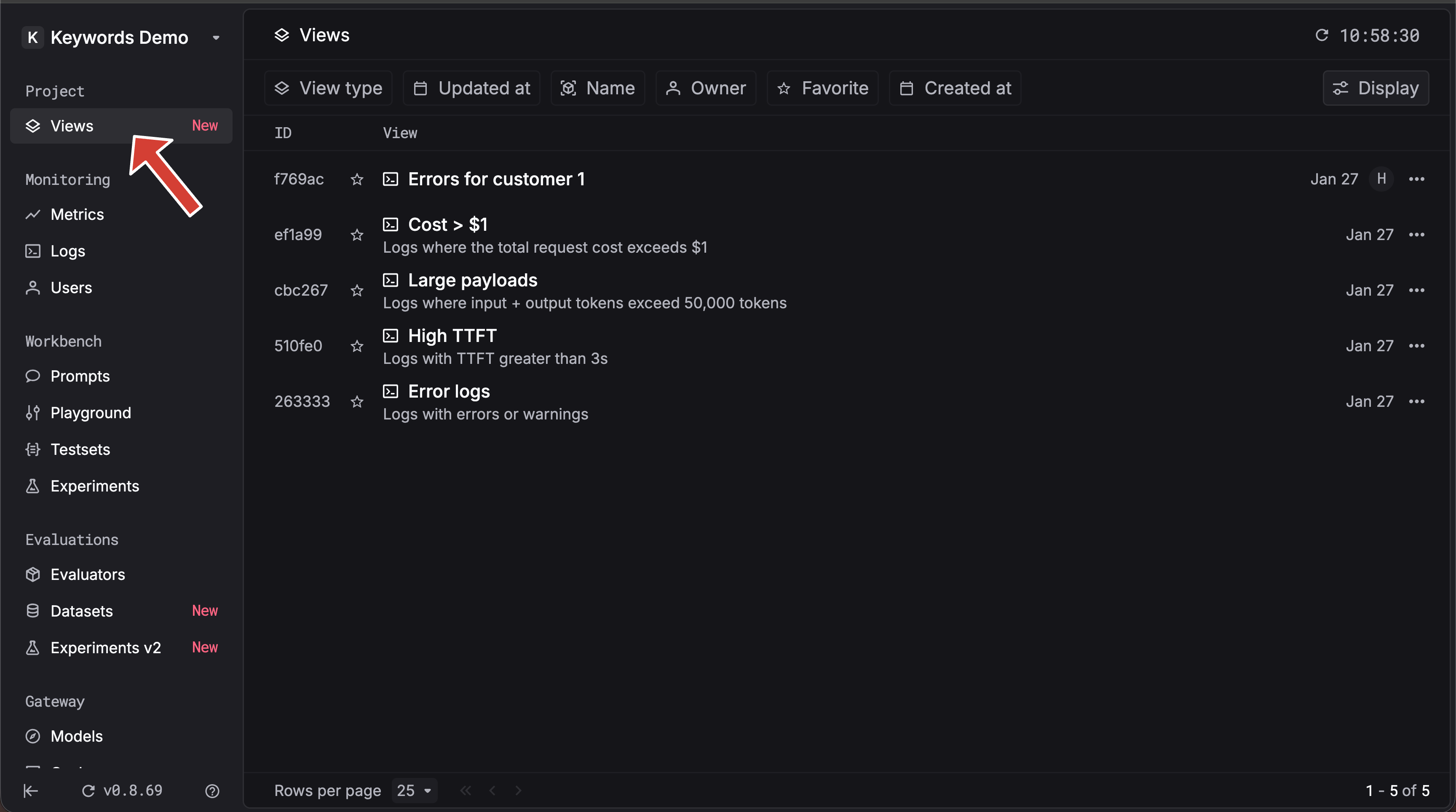
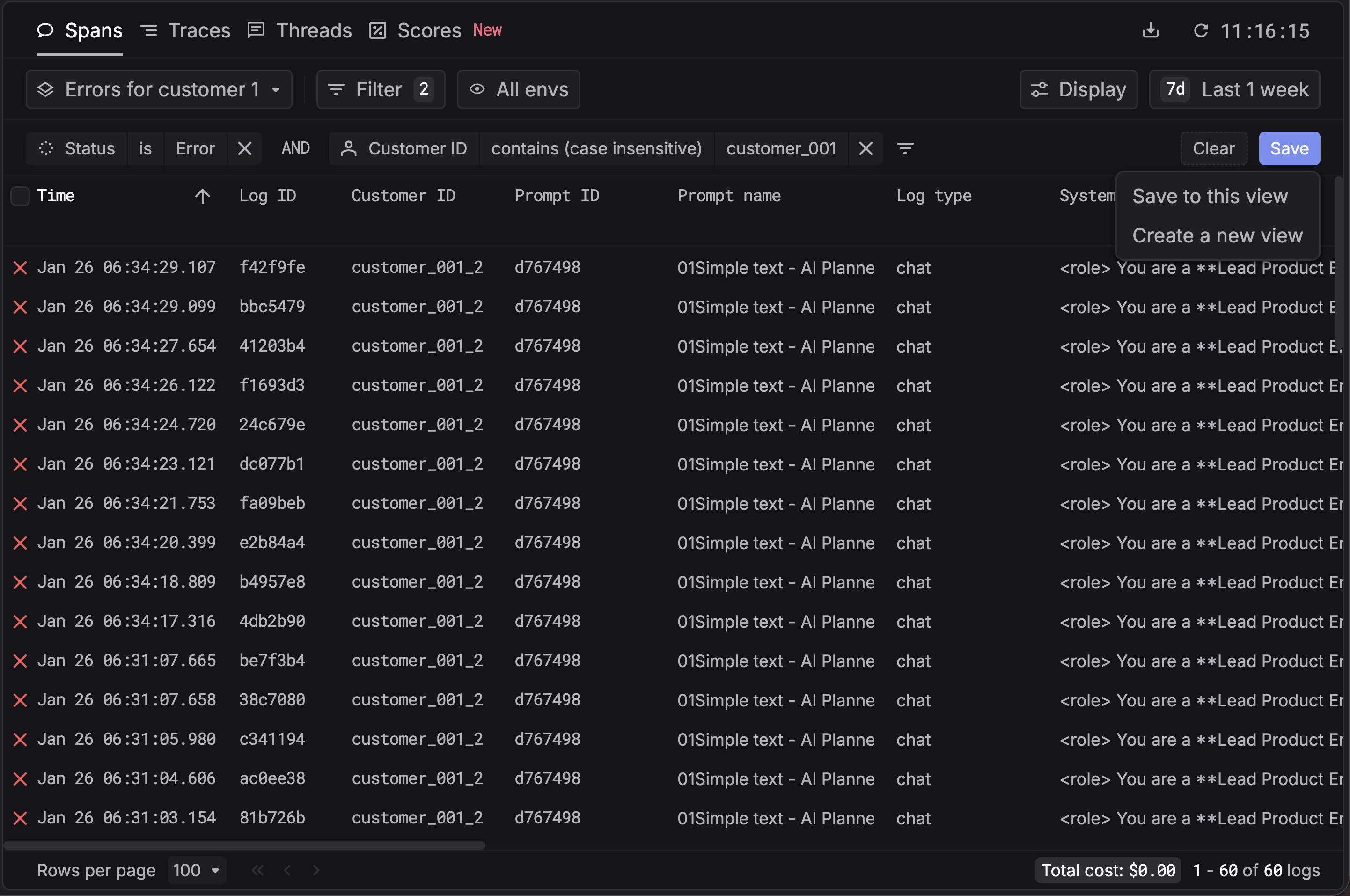
Views are saved filter configurations. When you apply filters on Logs, Traces, Users, Prompts, or elsewhere in Keywords AI—for example, bystatus, model, user, timestamp, or custom properties—you can save that filter setup as a view. Views let you reuse the same filters with one click instead of reconfiguring them each time.
Where you create filters
You can set up filters in Logs, Traces, Users, Prompts, and more:- Logs — Filter by status, model, user, timestamp, custom properties, and more. Use the Filter button on the Logs page.
- Traces — Filter traces by workflow, metadata, customer identifier, and other fields on the Traces page.
- Users — Filter users by identifier, usage, and related fields.
- Prompts — Filter prompts by name, model, and other attributes.
- And more — Views work across filtered surfaces throughout Keywords AI.
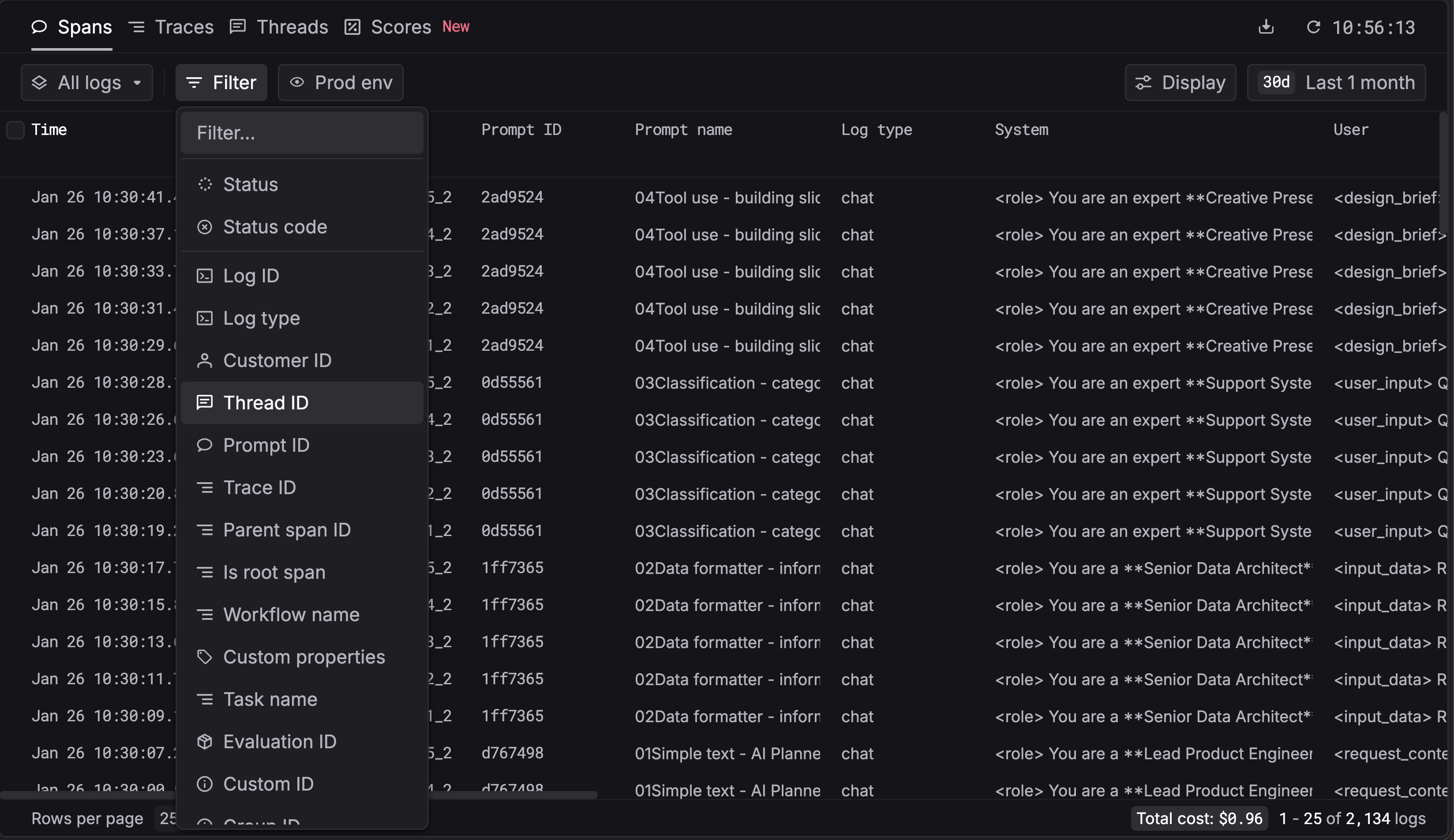
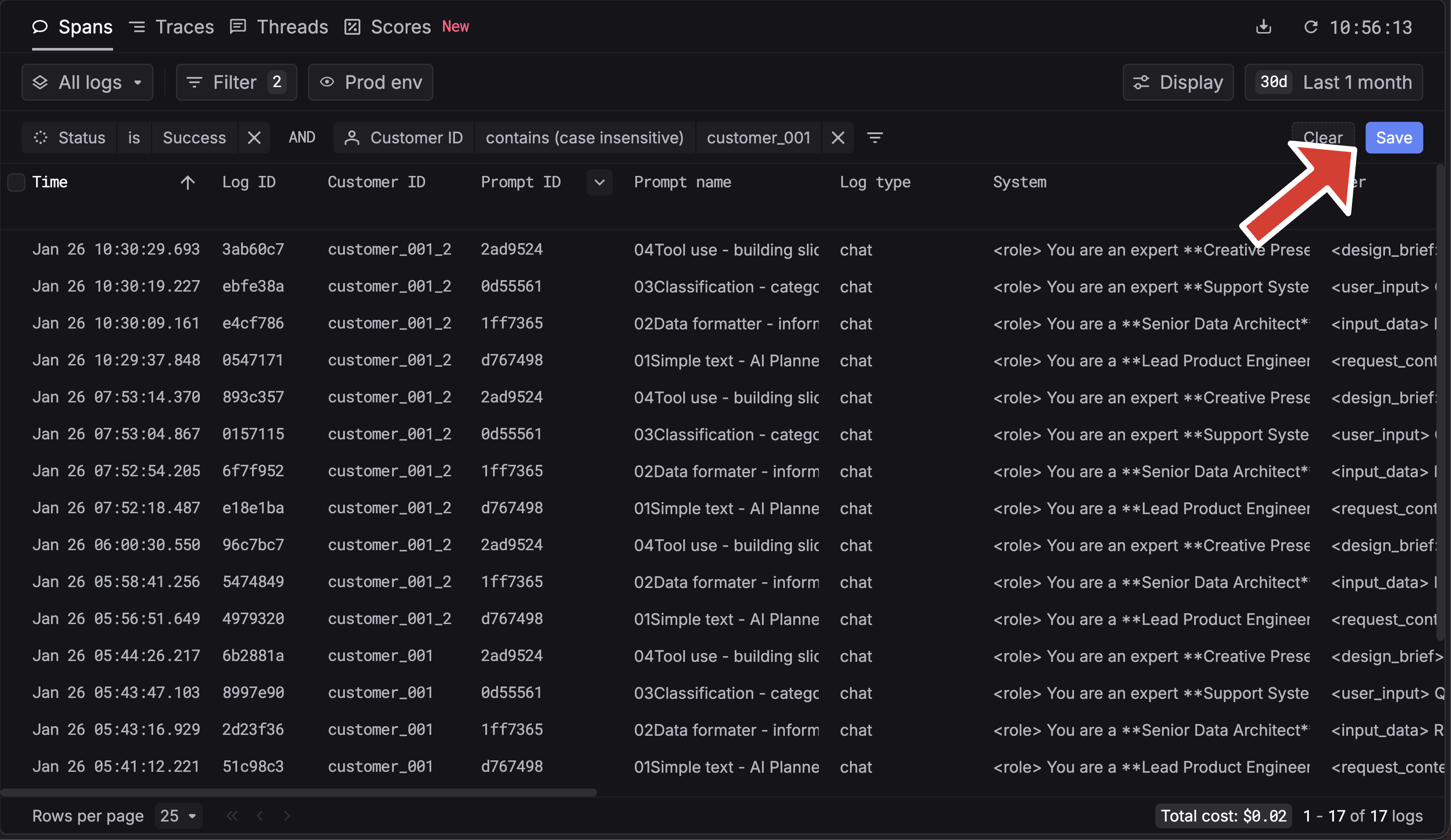
Steps to save a filter as a view
Add your view's name
Enter a name for your view (e.g. “Production errors”, “GPT-4 usage”) so you can find and reuse it later.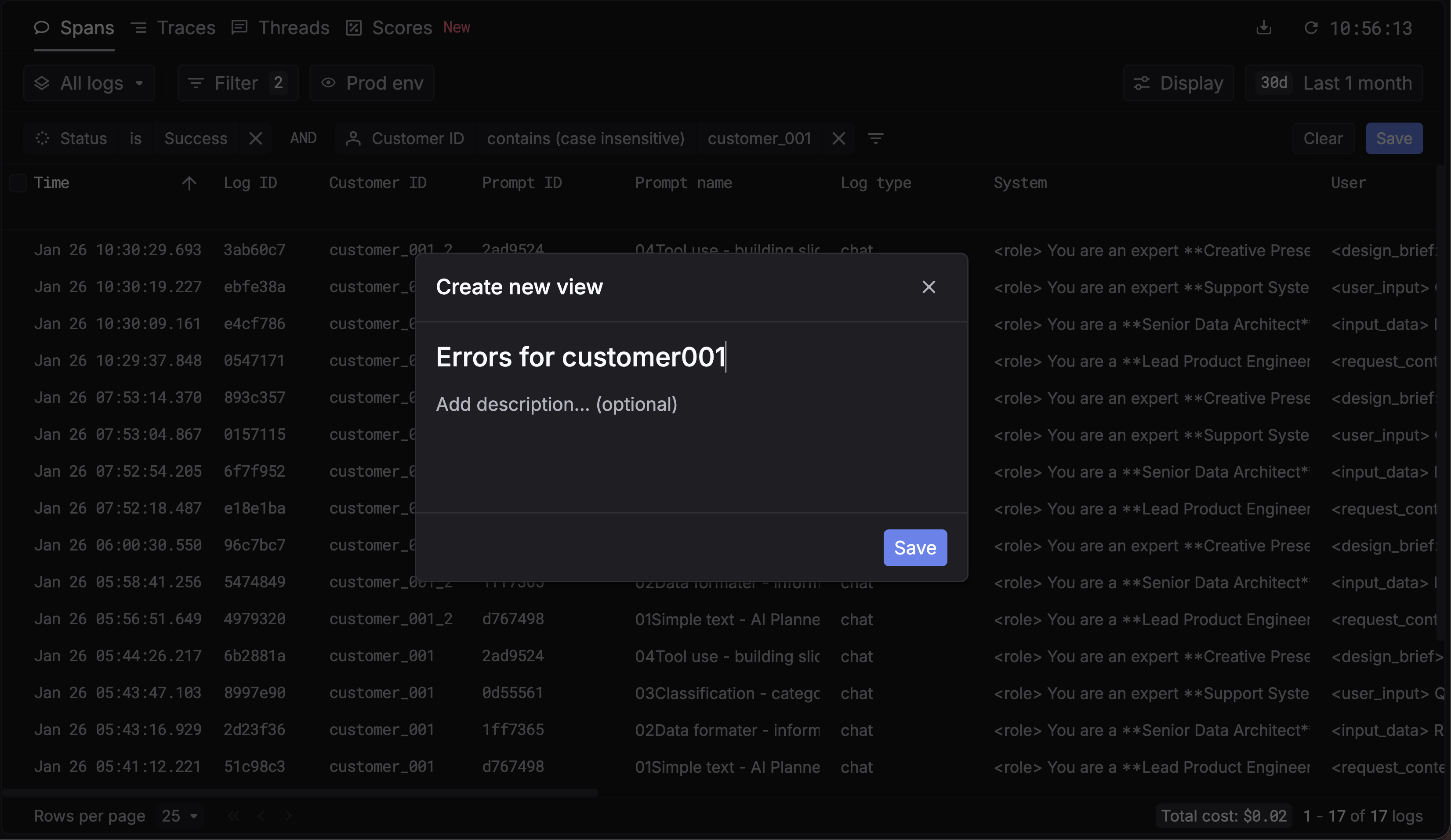
Use and manage views
- Apply a view — Select a saved view from the views list to instantly apply its filters.
- Change filters and save — When you’re in a view, you can change the filters, then Save to update the current view or Save as new to create a new view from the current filters.
Resources
- Filters API Reference — Filter logs, traces, users, prompts, and more programmatically; filters support operators like
gt,gte,contains,in, and more.
Additional
Logs quickstart
Get started with logging and filtering LLM requests.
Traces quickstart
Instrument workflows and filter traces.
Filters API Reference
Complete API documentation for filtering logs, traces, users, prompts, and more.