What is an automation?
An automation is a tool that helps you to monitor your LLM applications. You can set up metrics and alerts to monitor system performance.How to create an automation?
1. Create a condition
Start by defining a condition, which specifies when an alert should be triggered.Go to Conditions.
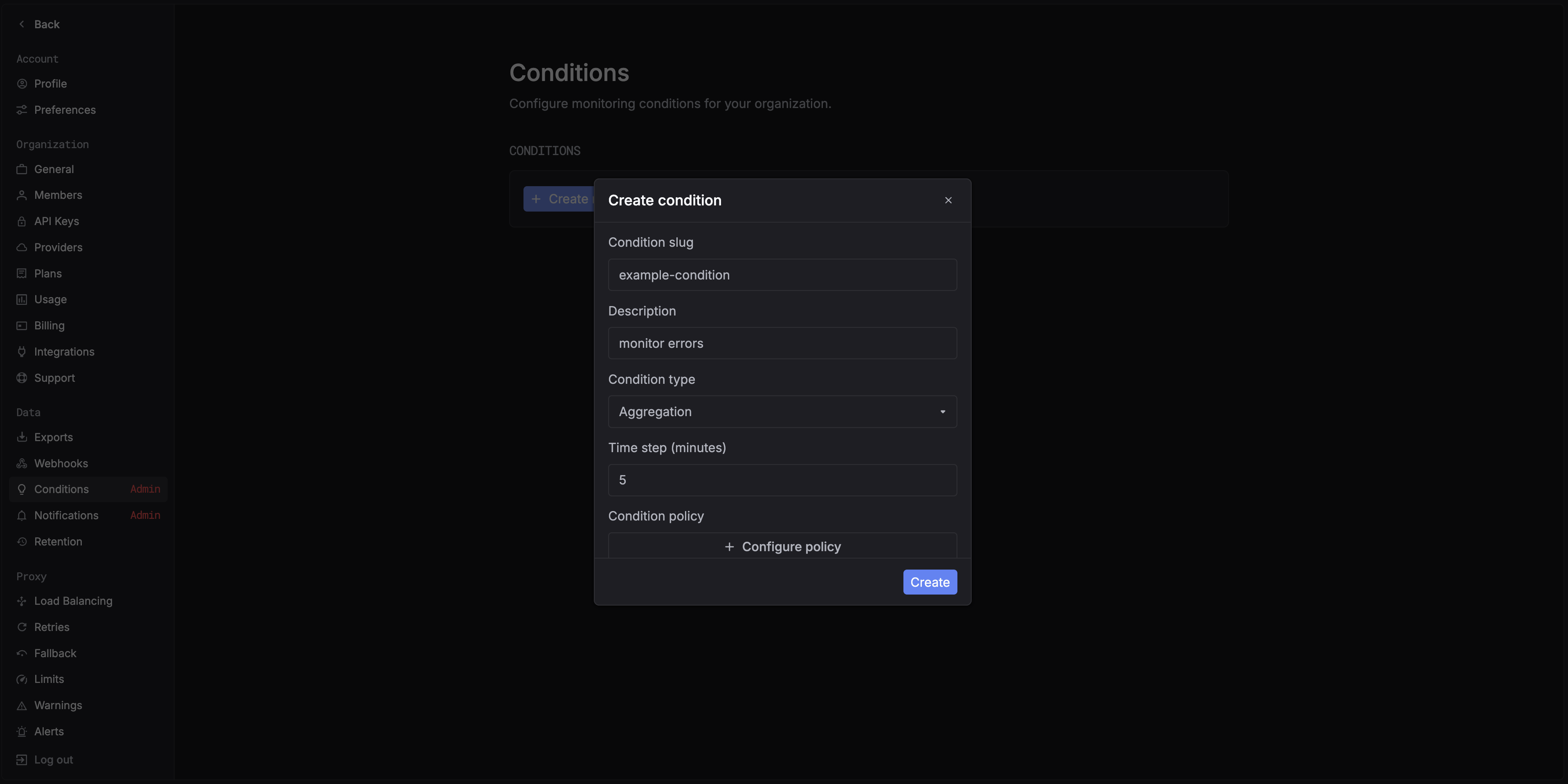
- Single log – triggers when a specific log matches the rule.
- Aggregation – triggers based on aggregated metrics over time.
This defines the time interval used for metric aggregation (e.g., every 5 minutes).
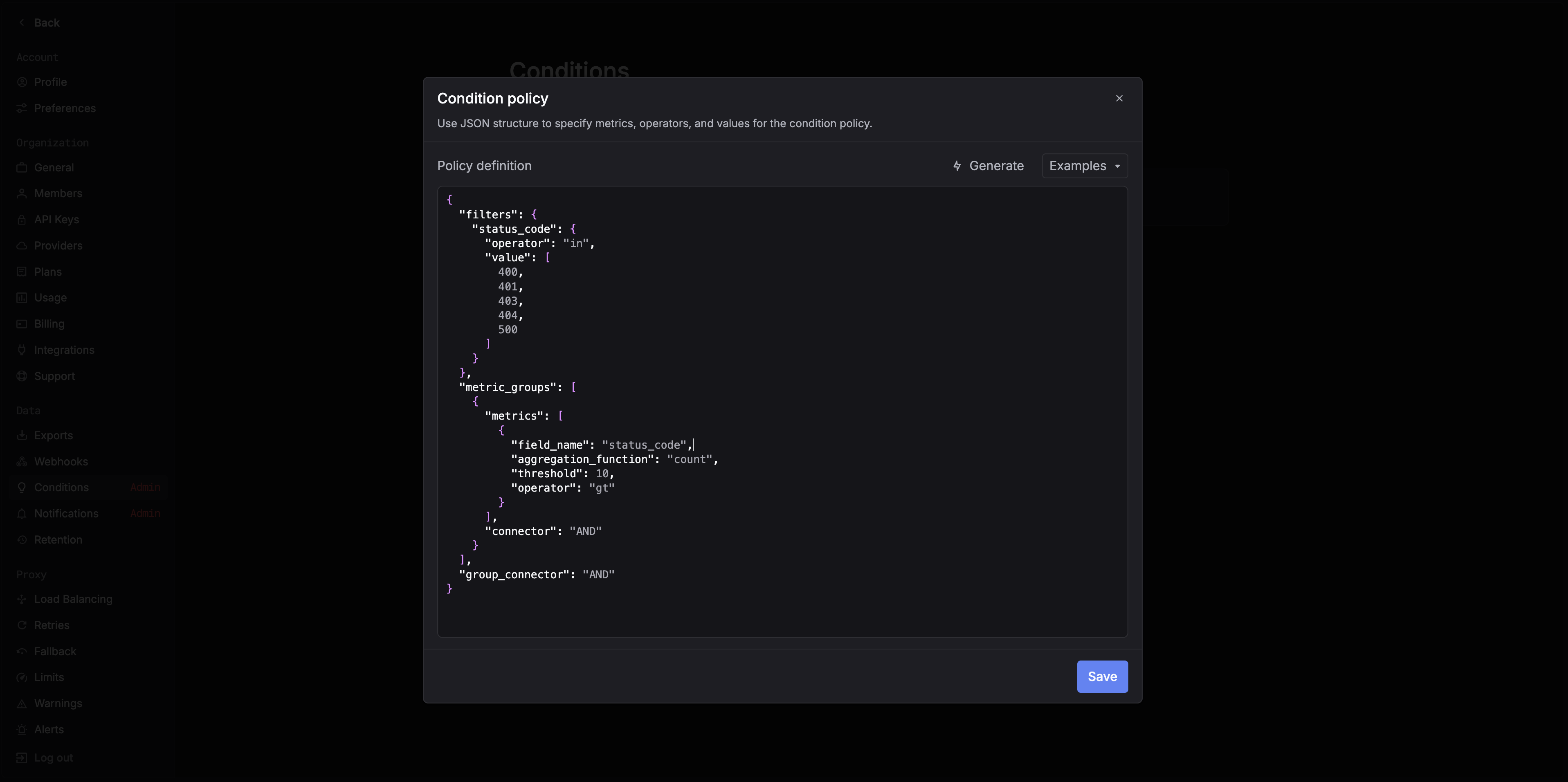
400, 401, 403, 404, 500) within a 5-minute window.
2. Create a notification
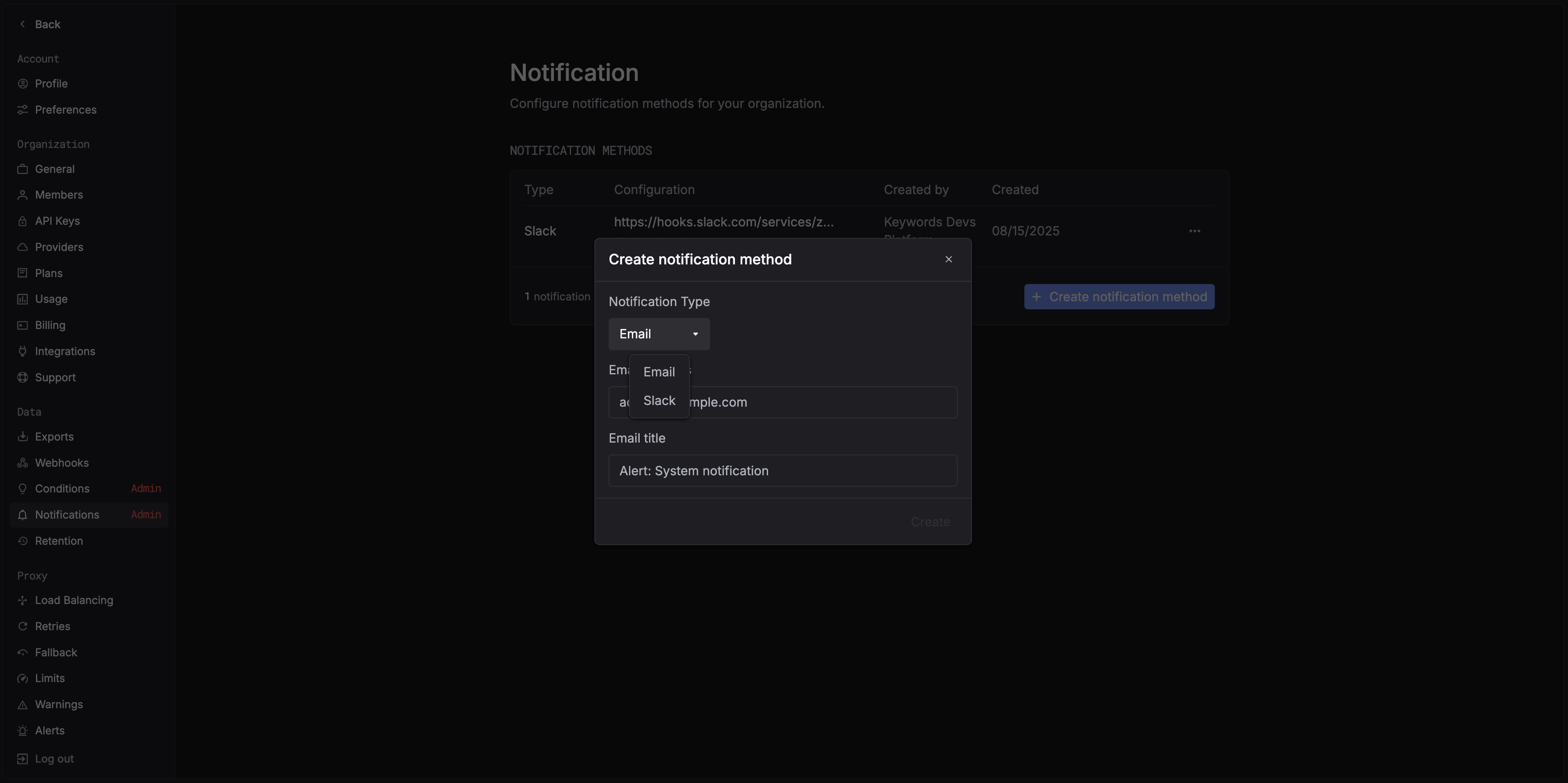
After defining your condition, set up a notification channel to receive alerts.Go to Notifications. Currently supported channels:
- Slack
3. Create a automation
Once your condition and notification are ready, navigate to Automations and create a new automation.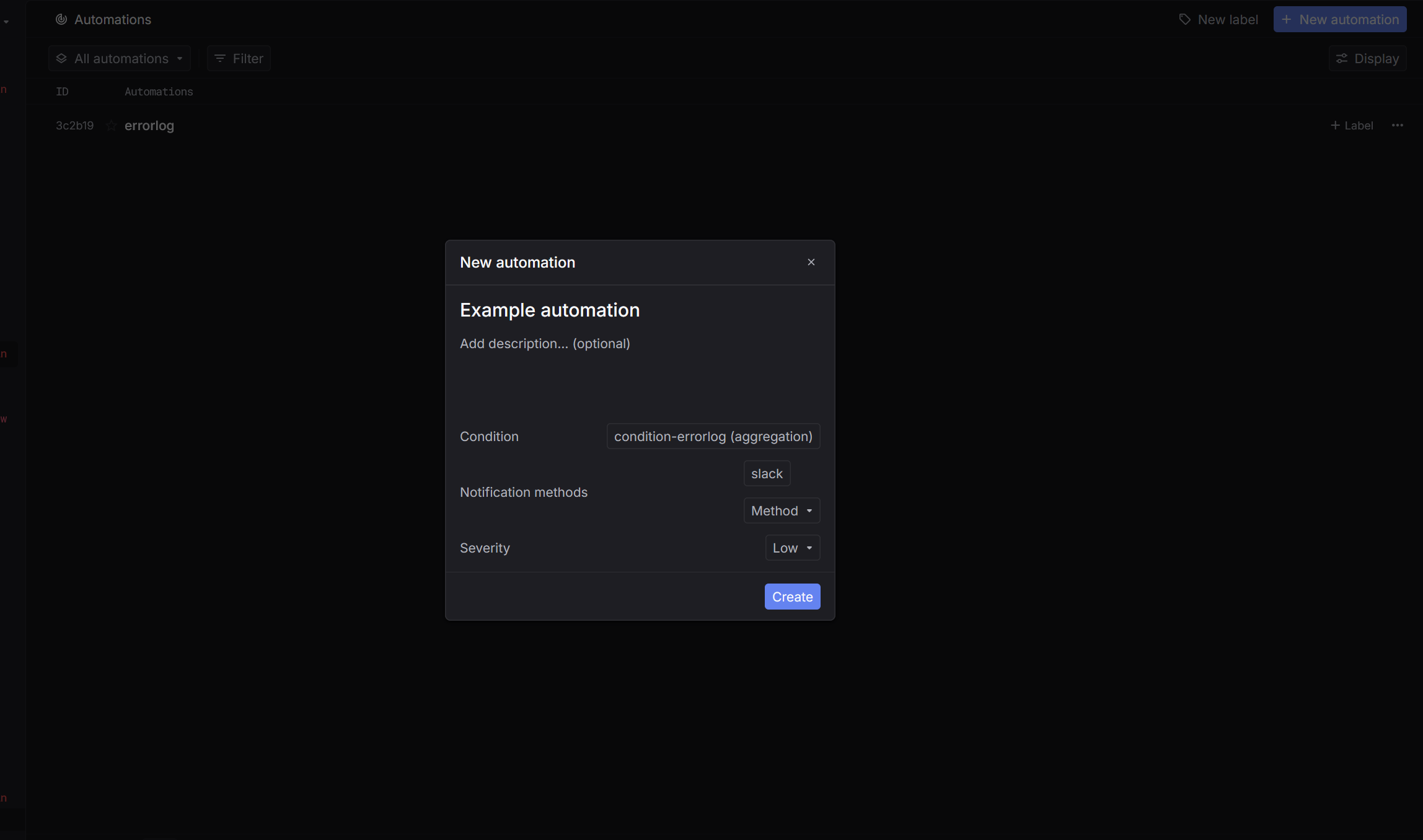
- Select the condition you want to track.
- Choose the notification method.
- Set the severity level for the alert (e.g., Urgent or Low).
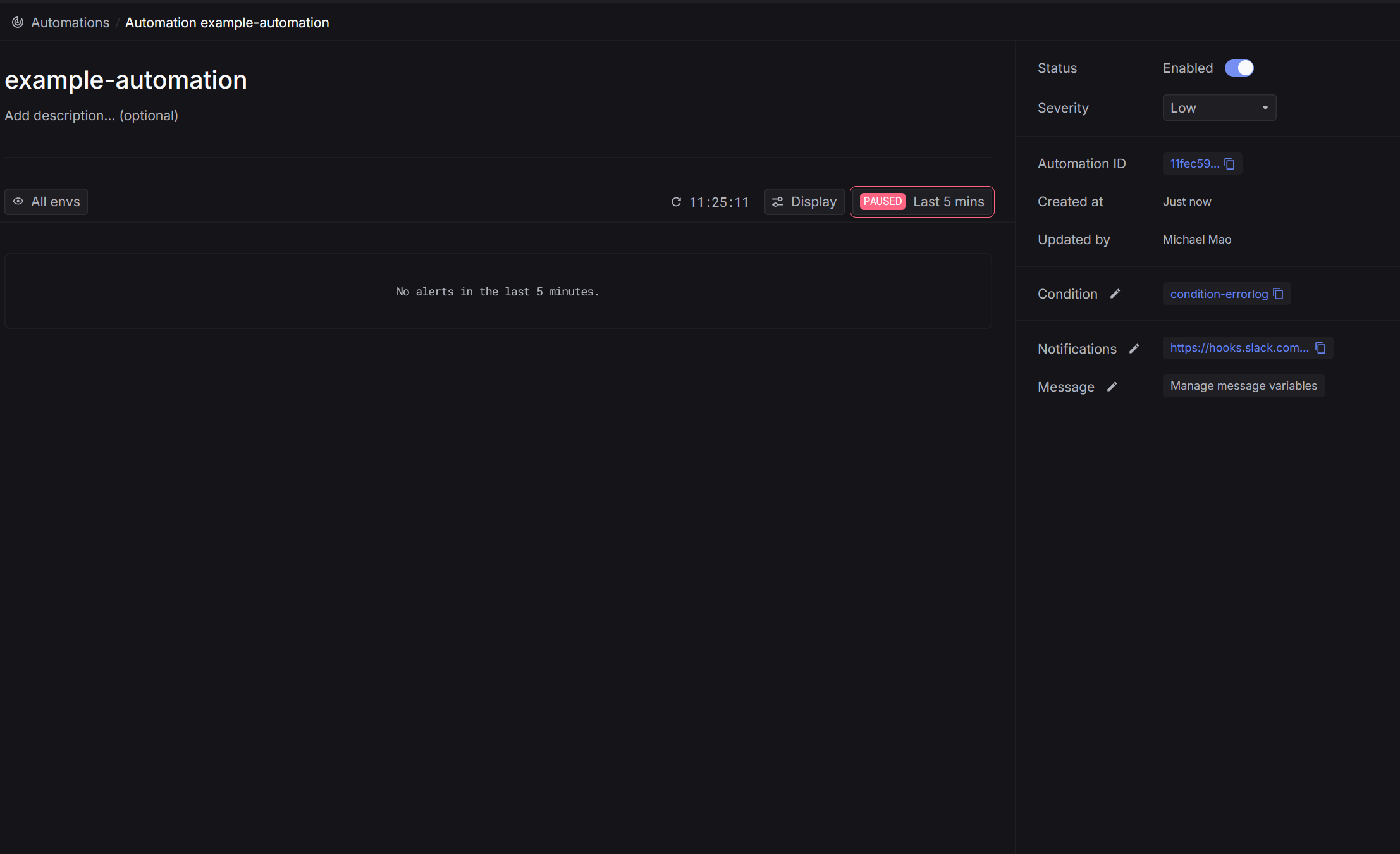
When the defined condition is met, alerts will automatically be sent through the selected notification method.
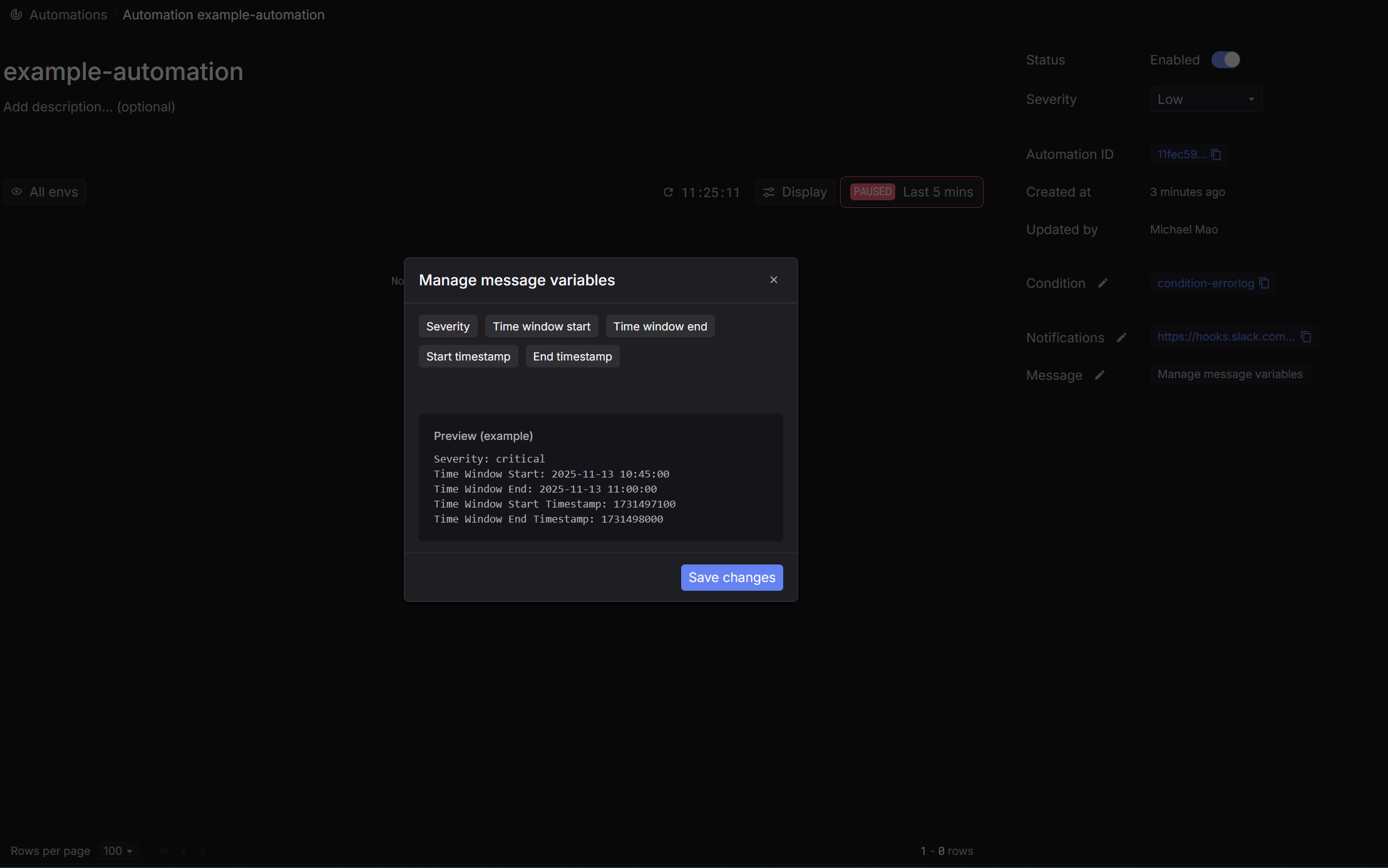
4. Customize automation notification message
You can customize the message that gets sent each time an automation is triggered. Choose from several predefined choices:- severity
- triggered time range
- …