

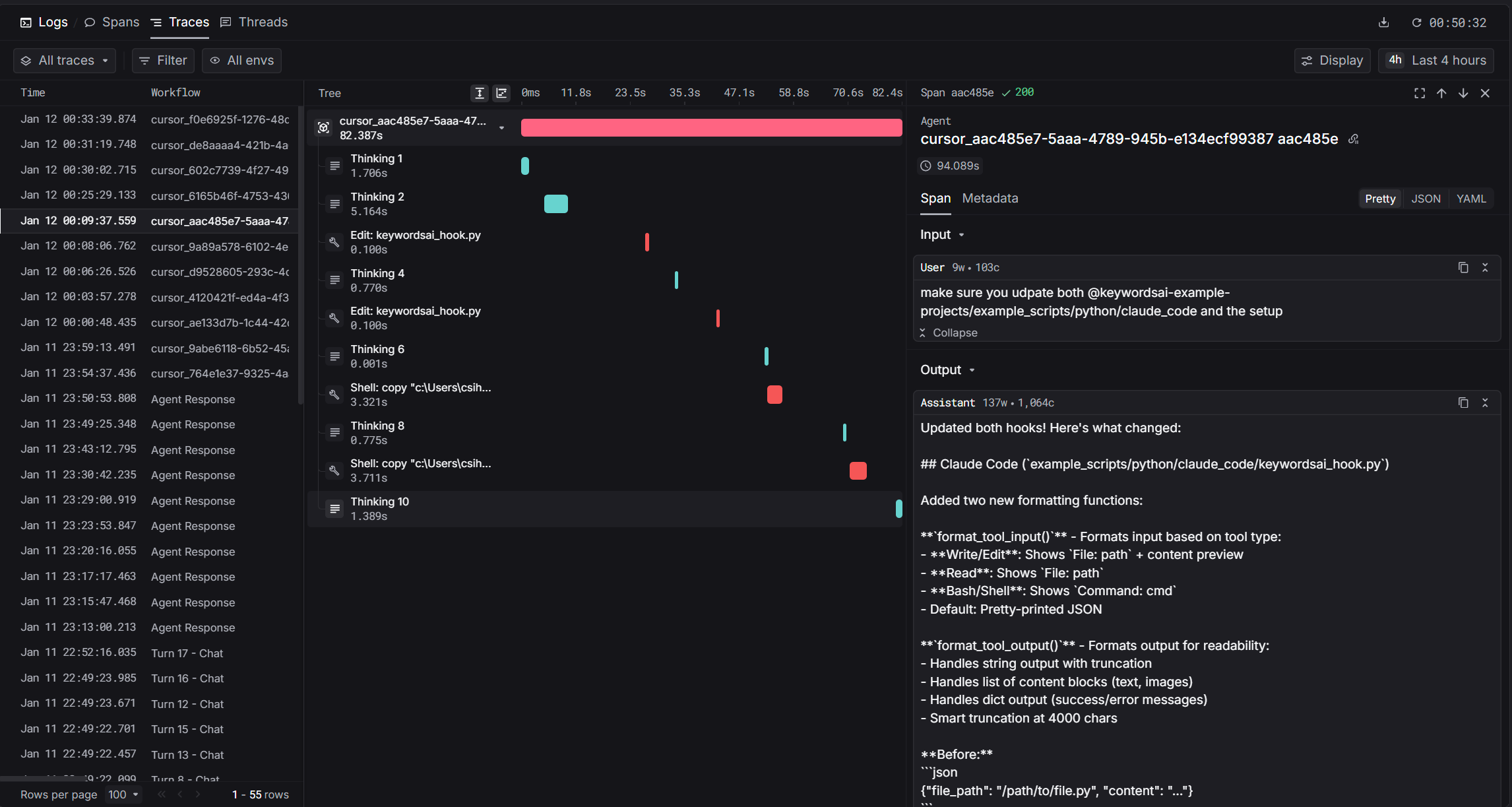
How It Works
Cursor provides hooks that fire during agent execution. Our integration captures these events in real-time and sends them to Keywords AI as hierarchical traces. The hook captures thinking blocks, file edits, shell commands, and MCP tool calls as child spans under a root agent span.Prerequisites
- Cursor IDE installed
- Keywords AI API key
- Python 3.8+ with
requestslibrary
Installation
1. Set Environment Variables
Add these to your shell profile (.bashrc, .zshrc, or PowerShell $PROFILE):
2. Download the Hook Script
Download the hook script to your Cursor hooks directory:3. Configure Cursor Hooks
Create~/.cursor/hooks.json with the following configuration:
4. Restart Cursor
Restart Cursor IDE to apply the hooks configuration.Hooks Reference
| Hook | Trigger | Data Captured |
|---|---|---|
beforeSubmitPrompt | User sends prompt | User input, start time |
afterAgentThought | Agent thinking | Thinking text, duration |
afterShellExecution | Shell command completes | Command, output, duration |
afterFileEdit | File edited | File path, edits |
afterMCPExecution | MCP tool completes | Tool name, input, output, duration |
afterAgentResponse | Agent responds | Response text (creates root span) |
stop | Agent stops | Cleanup |
Span Types
| Span | log_type | Description |
|---|---|---|
| Root | agent | The complete agent turn |
| Thinking | generation | Agent reasoning blocks |
| Shell/File/MCP | tool | Tool invocations |
Trace Fields
| Field | Value | Description |
|---|---|---|
trace_unique_id | {conversation_id}_{generation_id} | Unique per turn |
span_workflow_name | cursor_{conversation_id} | Groups all turns |
thread_identifier | cursor_{conversation_id} | Links turns in Threads view |
Debugging
Check the log file for issues:Common Issues
| Issue | Solution |
|---|---|
| No traces appearing | Check TRACE_TO_KEYWORDSAI=true is set |
| API errors | Verify KEYWORDSAI_API_KEY is correct |
| Only root span | Ensure all hooks are configured in hooks.json |
| Missing thinking | Check afterAgentThought hook is active |